The short version
- Charge the desk phone, keep a power bank beside it, and write tomorrow's arrivals on paper the evening before.
- Choose an app that has a plan for a lost signal, not one that shows a spinner and an error.
- Roost keeps bookings, payments, guests and check-outs working offline and sends them when the signal returns.
- Receipts, edits, cancellations and uploads wait for a connection. Do not clear the app while changes are waiting.
Plan for the cut before it happens
Most of this is dull and none of it is clever, which is why it works.
- Keep the phone you run the desk on charged, and keep a power bank beside it. A router with no power gives you no Wi-Fi, but a phone with a mobile data bundle usually still has a signal while the cut lasts.
- Write tomorrow's arrivals on a sheet the evening before: names, rooms, expected time and any balance. A piece of paper costs nothing and gets you through a flat battery.
- Know your room numbers well enough to answer without looking. Someone will ask in the dark where a guest is staying.
What goes wrong with an app that assumes a connection
The apps I dislike using on a weak signal show a spinner, then an error, and sometimes sign you out. The booking you were halfway through is gone, and you are back to the notebook while a guest waits. The problem is not that the signal dropped. It is that the app had no plan for it.
What Roost does without a connection
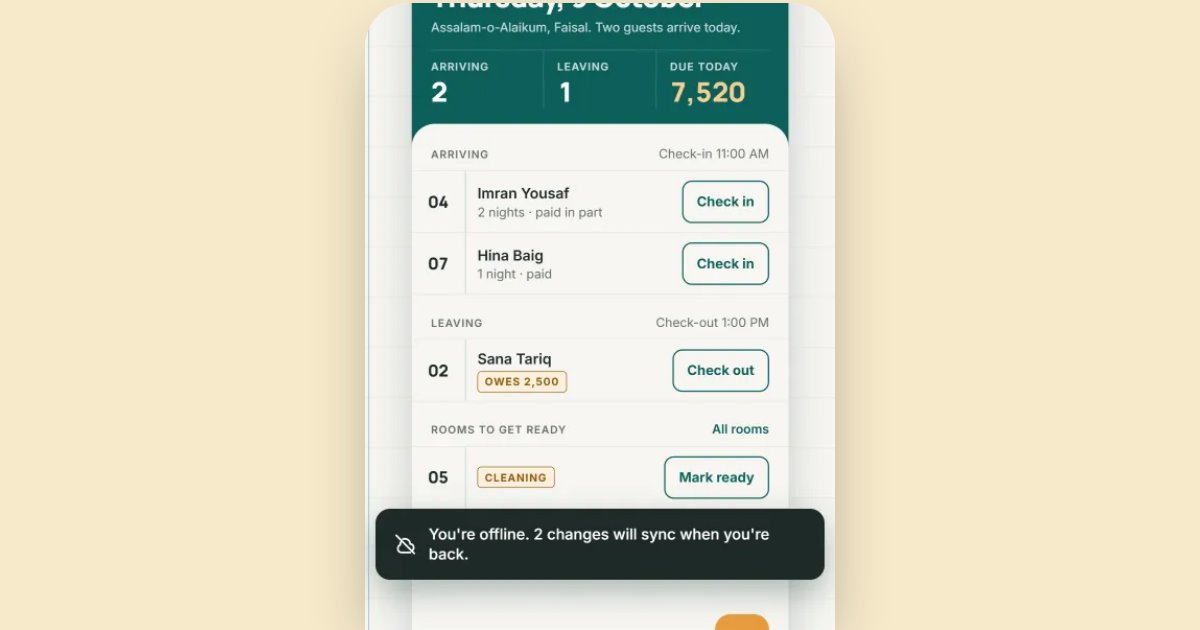
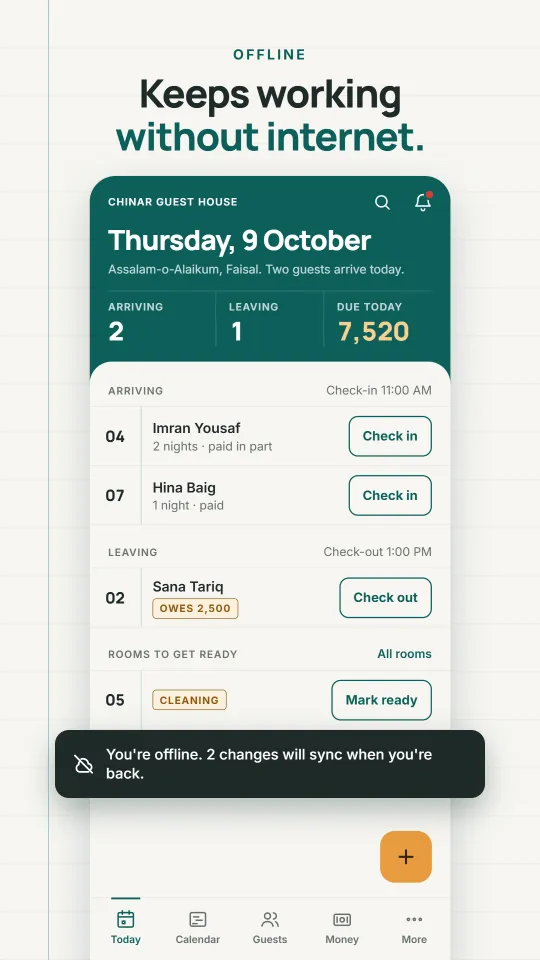
Roost saves what it showed you last time, so screens still open when the signal is gone. A banner at the top tells you that you are offline and that you are looking at saved data.
Works offline
- Adding a guest
- Taking a payment
- Booking one room or several
- Adding extras
- Checking a guest out
- Recording an expense
Waits for a connection
- Editing or cancelling a booking
- Deleting something
- Undoing a check-out
- Uploading a photo or file
- Creating the numbered receipt
These jobs work offline: adding a guest, recording an expense, taking a payment, creating a booking for one room or several, adding extras to a booking, and checking a guest out. Roost keeps each change on the phone, shows the result at once in your lists and totals, and sends the changes to the server one at a time, oldest first, when the connection comes back. The banner tells you how many are waiting.
Every record gets its identity on the phone before it is sent, so if the connection drops halfway through sending, nothing is entered twice when Roost tries again.
What does not work offline
Editing or cancelling a booking, deleting something, undoing a check-out, and anything that uploads a file: a guest photo, an ID image, the photo of a bill, room photos or your logo. When you add a guest offline, the guest is saved and the photo waits.
The one that catches people out is the receipt. Taking the payment works offline and the payment is safe, but the numbered receipt is created only once the phone is back online. In practice, tell the guest the receipt will arrive on WhatsApp in a few minutes, or switch on mobile data on the desk phone for those moments.
When two phones disagree
The case to watch is two people taking bookings while one phone is offline. Say you book room 4 for a weekend while offline, and someone else books room 4 for the same nights from another phone. The server cannot allow both. When your phone reconnects, it refuses yours with a message, your booking stays visible marked as needing attention, and the banner turns red. You open it, read the reason, and either try again or discard it and book another room. Nothing is quietly changed or dropped.
Two phones that are both offline cannot see each other's work until both have synced. If that can happen at your desk, agree on who takes bookings during a cut.
Two ways to lose changes
Changes waiting to be sent live on the phone itself. If you uninstall Roost, or clear its data to free up space, before they have been sent, they are gone. Check that the banner shows nothing waiting before you clear anything. After a long cut, open the app once with a connection and watch the count fall to zero before you put the phone away.
The saved copy and the waiting changes sit on the phone, protected by the phone's own lock, so use a screen lock on the phone that runs your desk.